Recently, I came across an application assessment which was based on an Oracle Forms technology with JInitiator 1.3.1.26. This post quickly describes few setup options to pentest such applications.
Facts
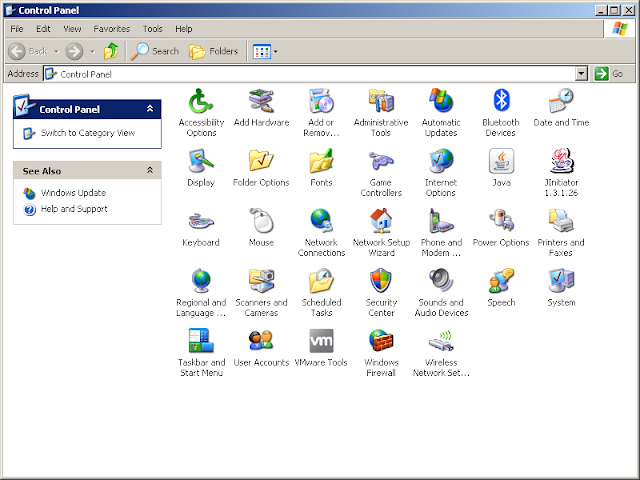

While in HTTP mode with JInitiator, you are left with little choice.One way is to configure JInitiator to open a debug port and then connect with a debugger. JSwat can be a good choice but in my case it crashed the application everytime and so did the Netbeans native debugger. Only JDB worked for me using below mentioned steps,
In the JInitiator control panel, under the Basic tab, specify the following Java Runtime Parameters,
-Xdebug -Xrunjdwp:transport=dt_socket,server=y,suspend=n,address=5000

Click on Apply. Then connect to the given port (5000) using any popular Java debugger or using JDB with the following command,
jdb.exe -connect com.sun.jdi.SocketAttach:hostname=127.0.0.1,port=5000
Once you have the connection in the debugger, you know where to move ahead.
Summary
1. Oracle Forms + JInitiator/JRE + HTTPS = You can use any browser and a BURP proxy
2. Oracle Forms + JInitiator + HTTP = Method shown in this blog
3. Oracle Forms + JRE + HTTP = You can use JavaSnoop
Facts
- Oracle Forms can be configured at server to use JRE or JInitiator based on the requirement.
- When in HTTP mode, Oracle Forms uses a proprietary encryption scheme to encrypt the data in transit.
- When configured to use JInitiator and HTTP mode, it is painful to do assessment.


While in HTTP mode with JInitiator, you are left with little choice.One way is to configure JInitiator to open a debug port and then connect with a debugger. JSwat can be a good choice but in my case it crashed the application everytime and so did the Netbeans native debugger. Only JDB worked for me using below mentioned steps,
In the JInitiator control panel, under the Basic tab, specify the following Java Runtime Parameters,
-Xdebug -Xrunjdwp:transport=dt_socket,server=y,suspend=n,address=5000

Click on Apply. Then connect to the given port (5000) using any popular Java debugger or using JDB with the following command,
jdb.exe -connect com.sun.jdi.SocketAttach:hostname=127.0.0.1,port=5000
Once you have the connection in the debugger, you know where to move ahead.
Summary
1. Oracle Forms + JInitiator/JRE + HTTPS = You can use any browser and a BURP proxy
2. Oracle Forms + JInitiator + HTTP = Method shown in this blog
3. Oracle Forms + JRE + HTTP = You can use JavaSnoop

when i treid to use below combination
ReplyDelete"Oracle Forms + JRE + HTTP = You can use JavaSnoop", i am successfully able to attach javasnoop in oracle forms but the for next operation when i went back to application, application lost server connection, means
client respond server that external application tried to hook client,result of which server stopped connection, how to remove this security from server , i hav e access of server also